Free during launch · macOS 13 +

Stop spending tokens
on oversized screenshots.

PasteLight lives in your menu bar and quietly compresses every screenshot you copy. On Claude Opus 4.7, the Max Saver preset cuts your large-screenshot tokens by about 80% — automatically, before you paste.

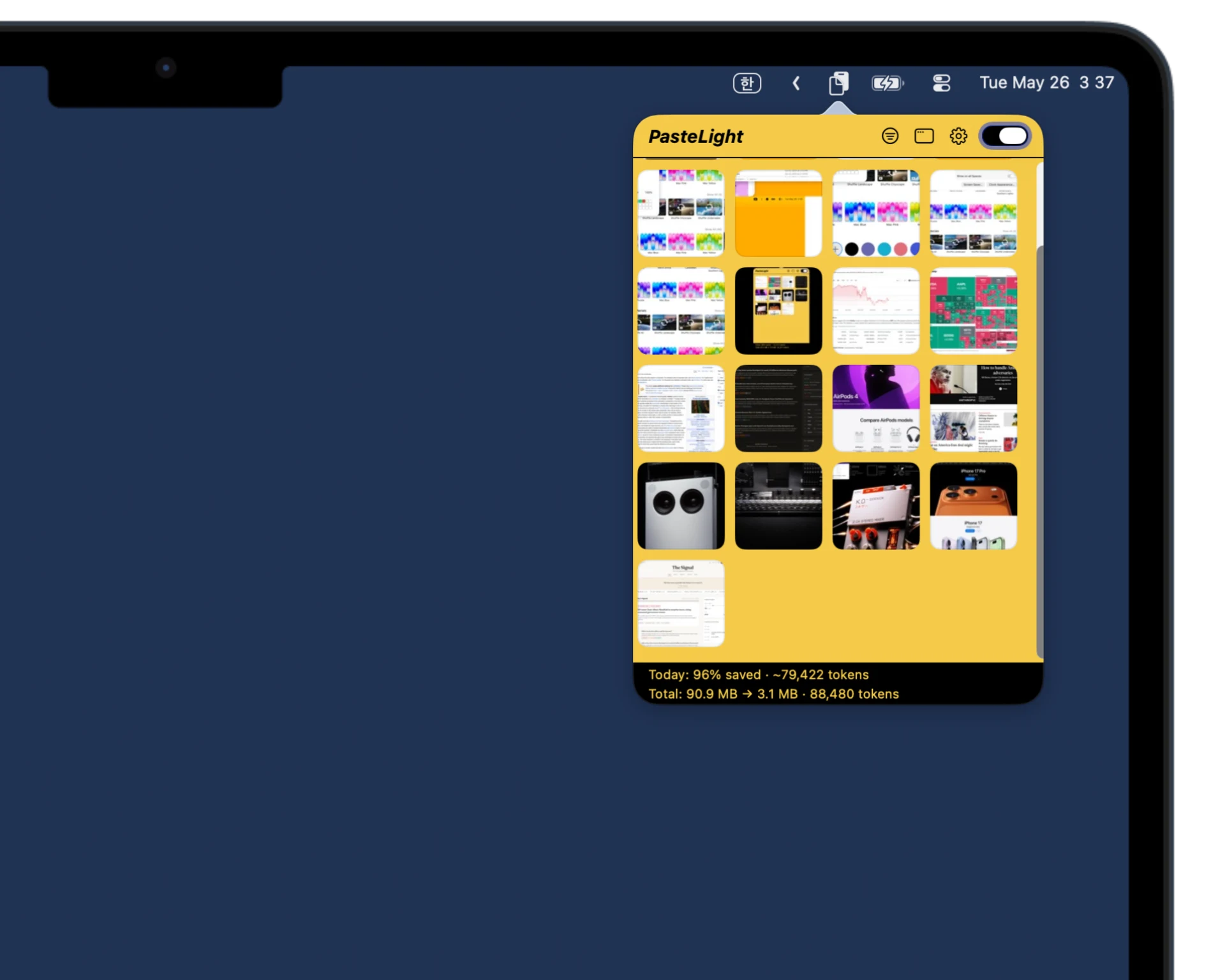
PasteLight running on macOS — a grid of compressed screenshots with per-item token savings and a daily total
Why

Big screenshots
burn big tokens.

Modern AI models bill you for image tokens by area — roughly one token per 750 pixels. A full-screen Retina capture is over 5 million pixels, which on Claude Opus 4.7 costs about 5,500 tokens for a single paste.

That cost is the quiet reason you hesitate — cropping tighter, second- guessing whether a screenshot is "worth" pasting, leaving context out. With PasteLight running, the math gets so much smaller that the hesitation goes away. Share the whole screen, every diff, every chart — without doing the math in your head first.

PasteLight resizes and re-encodes each image to the smallest dimensions the model can still read well, then writes the smaller copy straight back to your clipboard. You paste exactly like before — the bill just shrinks.

Anthropic's own Vision docs recommend downsampling high-resolution images on Opus 4.7 to control token costs. PasteLight does that automatically, every time.
How it works

Three steps. Two of them
you already do.

  1. 01

    Take a screenshot

    Cmd + Shift + 4, or copy any image. Nothing to launch — PasteLight is already watching the clipboard.

  2. 02

    PasteLight compresses it

    WebP encoding, dimensions clamped to the model's vision cap. A ✓ flashes in the menu bar when it's ready.

  3. 03

    Paste like normal

    Cmd + V into Claude, ChatGPT, or anywhere else. Same image, a fraction of the tokens.

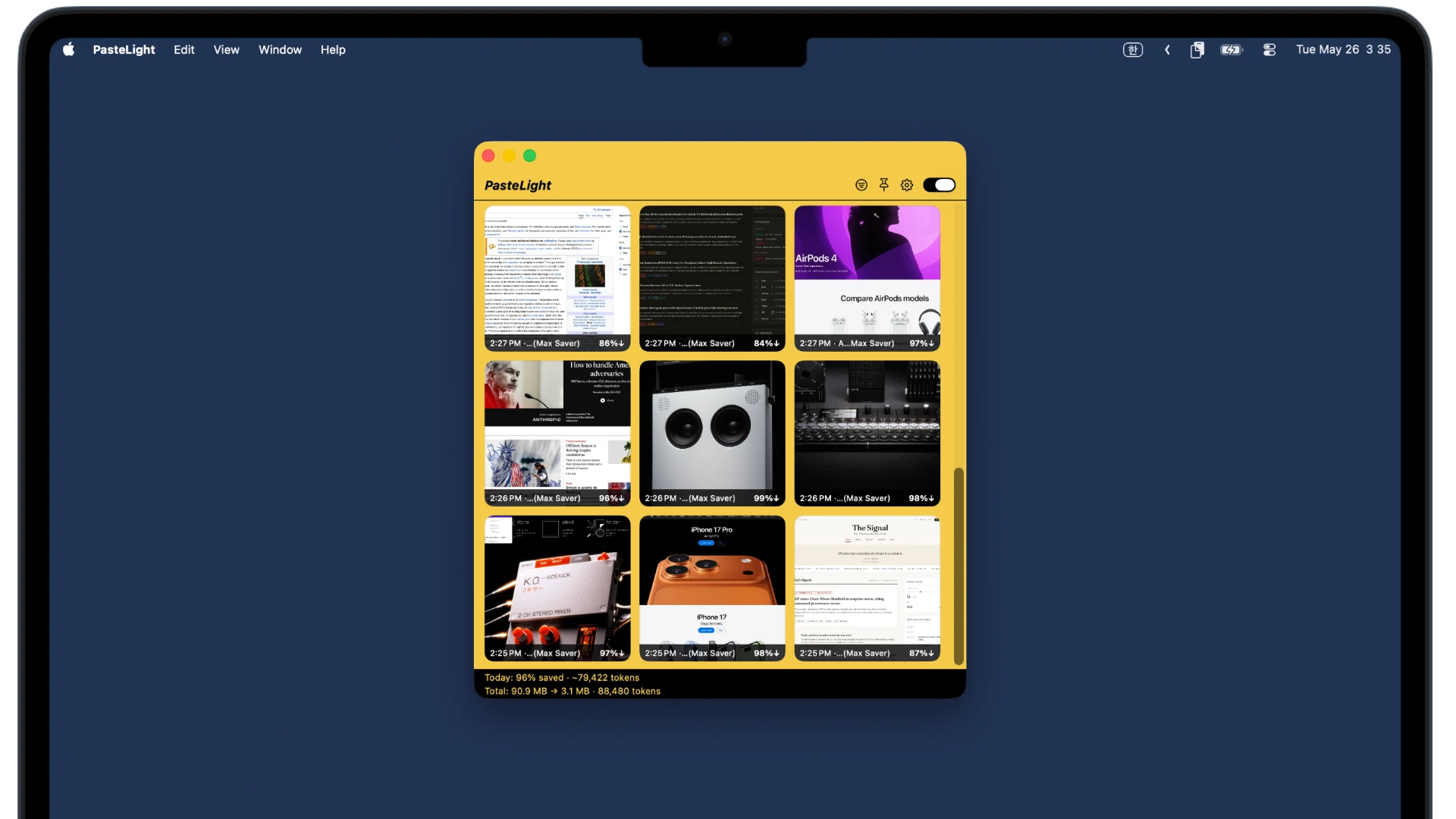
PasteLight popover dropping down from the macOS menu bar, showing recent clipboard screenshots and daily token savings
Menu bar first

One keystroke to your
last 50 screenshots.

PasteLight lives quietly to the right of your menu bar. Hit ⌥⇧⌘V anywhere and the history drops down — click any cell to re-copy it, already compressed.

No window switching. No dock icon. Nothing to launch.

Features

Everything a clipboard utility
should already do.

Four presets, one custom slot

Max Saver (1024 px, WebP) for chat. Balanced (1280 px) as the default. Blogging and Photo for higher-res output. Custom is yours to tune.

Global hotkey

⌥⇧⌘V pops the history open from anywhere. Deliberately avoids macOS's own Paste shortcuts.

Clipboard history

Up to 50 recent images (30 by default), browsable as a grid or list. Click any cell to re-copy it instantly.

Lightning theme

Warm amber on the front, ink on the back. Or stay in Classic and follow macOS appearance.

Menu bar + window

Quick popover for the keyboard-driven flow, full window with drag-and-drop for longer sessions.

Token estimates

See bytes saved and approximate tokens spared, per image and per day. Useful when you're tuning a preset.

Make it yours

Two themes,
five presets, one slider.

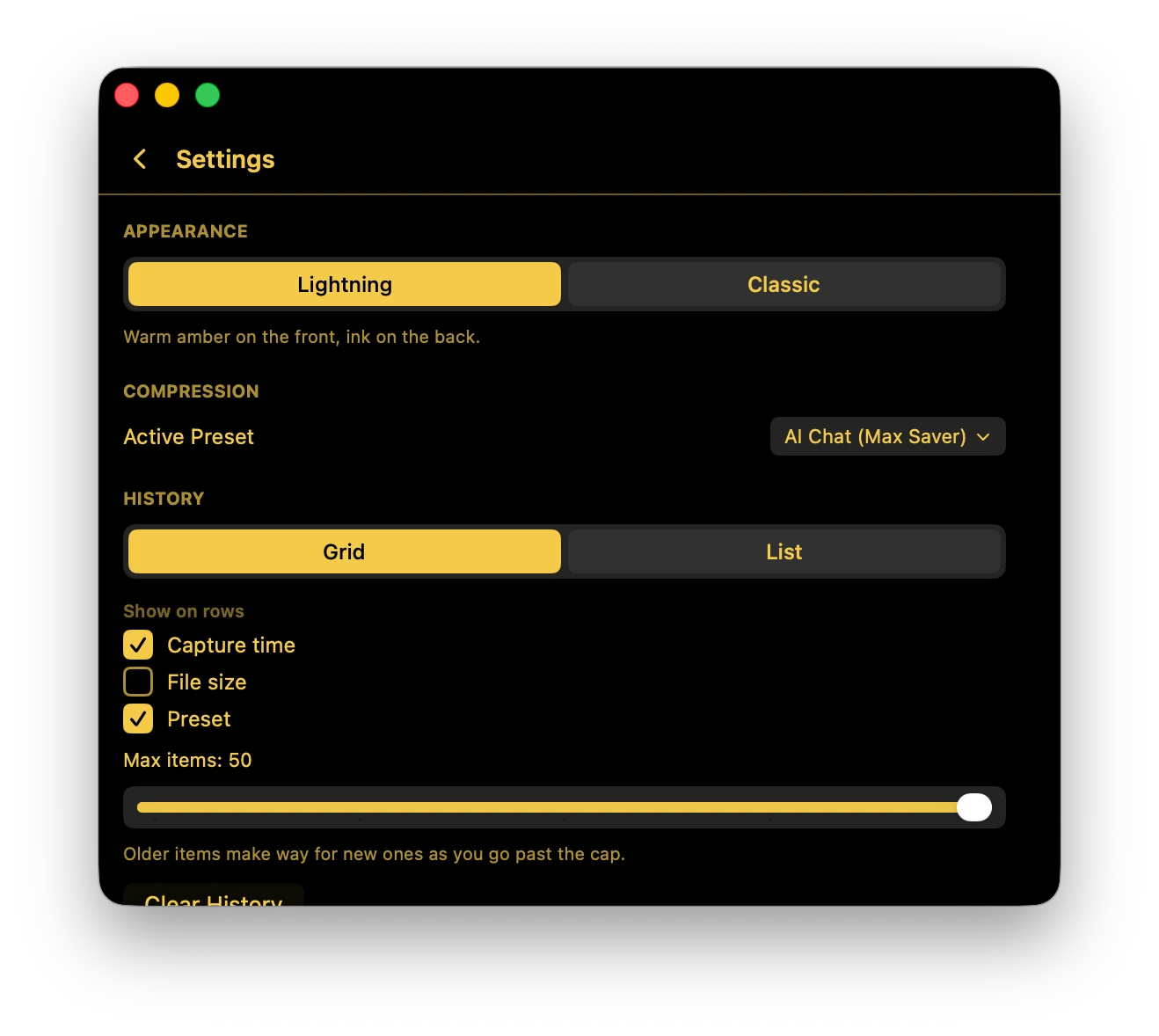
Lightning for warm amber on ink. Classic for the macOS look. Pick one of four presets — Max Saver, Balanced, Blogging, Photo — or dial in your own.

Grid or list view. Show capture time, file size, preset name. Cap the history anywhere from 10 to 50 items. The defaults are good; tune them once and forget.

PasteLight Settings panel with Lightning theme selected, AI Chat (Max Saver) preset active, grid view, and a max-items slider at 50
The math, drawn out

Where the savings
actually come from.

Below are PasteLight's projections against Claude Opus 4.7 (image cap: 2,576 px on the long edge). The bigger your capture, the bigger the cut.

Tokens per screenshot, before and after

Without PasteLight Max Saver
Full-screen Retina 2880 × 1800 5,530 874 · −84% Browser / app window 1920 × 1200 3,072 768 · −75% Code / smaller window 1280 × 800 1,365 341 · −75% Dialog / small UI 600 × 375 300 133 · −56% Tokens →

Annual savings on Claude Opus 4.7

Max Saver Balanced
$0 $100 $200 $300 $400 $500 5 10 20 50 100 Screenshots per day ~$464 / yr

A note on these numbers

Token counts come from Anthropic's published vision-tokenization formula (image area divided by 750, after the model's long-edge clamp). The annual-savings chart assumes a realistic AI-workflow capture mix — 40% browser windows, 30% full-screen Retina, 20% smaller windows, 10% dialogs — and Anthropic's published Opus 4.7 input price of $5 per million tokens.

Your own savings will vary with what you actually capture, which model you use, and how often. These are projections, not measurements of your account. Small captures (under 400 px on the long edge) are preserved by design, so they save no tokens — only file size shrinks.

Three more things

Beyond the token math.

~10×
Smaller files

WebP with the right dimensions. Uploads finish in a blink — and the file-size cut applies on every model.

0
Network calls

Clipboard read locally, processed locally, history stored locally. Nothing ever leaves your machine.

$0
During launch

Every preset, every feature, no sign-up. A small one-time Pro tier arrives later for power users.

Get PasteLight

Free during launch season.
Yes, all of it.

No accounts, no telemetry, no upsell modals. A direct DMG you can throw into Applications and forget about.

Requires macOS 13 Ventura or later · Apple Silicon

First-time install · 30 seconds

PasteLight is unsigned during the free launch season, so macOS Gatekeeper will block the first launch. Three steps to get through it.

  1. Open the DMG. Drag PasteLight.app onto the Applications shortcut.
  2. Open Terminal (Spotlight → type “Terminal”). Paste this line and hit Return:
  3. Double-click PasteLight in Applications. Done — it’s now in your menu bar.

The command above tells macOS “I trust this file” — it removes the quarantine flag Safari attached during download. It changes only PasteLight; nothing else on your Mac. The friction disappears entirely once PasteLight is signed & notarized. More in the FAQ.

FAQ

Questions
people ask.

What are AI image tokens, exactly?

When you paste an image into Claude, it bills you for the pixels — roughly one token per 750 pixels of area. A full Retina screenshot is over 5 million pixels, so a single paste can cost thousands of tokens. PasteLight resizes the image to the smallest dimensions the model can still read well, then compresses it.

Where does my data go?

Nowhere. PasteLight reads the clipboard locally, processes images locally, and stores history locally in ~/Library/Application Support/PasteLight. No analytics, no accounts, no network calls.

Why is it free?

PasteLight is free during launch season while it finds an audience. A small one-time Pro tier will arrive later for a few power-user features. Everyone who downloaded it during the free season is grandfathered in — no rug-pull.

Does it run automatically?

Yes. PasteLight watches the clipboard in the background and compresses any image you copy. You can turn auto-replace off in Settings if you'd rather review images before they're swapped.

Which AI models does it help with?

Token savings are calibrated against Claude's vision model — that's where the math is verified. On Claude Opus 4.7 specifically, the savings are largest because Opus 4.7 raised the image cap to 2,576 px and bills you for more of your pixels. Anthropic's own docs recommend downsampling images on Opus 4.7 to control costs; PasteLight does exactly that. The file-size reduction (~10×) helps anywhere you paste images — ChatGPT, Gemini, Slack, email.

Why does macOS say PasteLight is from an unidentified developer?

During the free launch season, PasteLight ships without an Apple Developer signature — that's the $99/year certificate that lets Gatekeeper pre-approve apps. The warning is purely about that paperwork being absent; it isn't a sign that anything is wrong with the app itself. To open PasteLight on first launch: 1. Drag PasteLight.app to your Applications folder. 2. In Applications, right-click (or Control-click) PasteLight.app. 3. Choose 'Open' from the menu. 4. macOS will show a slightly different dialog with an 'Open' button — click it. 5. That's it. macOS remembers your approval, so future launches are normal double-click. A fully Apple-signed and notarized build is planned once PasteLight settles into its free launch season.

macOS says PasteLight is "damaged." What do I do?

It isn't damaged. When you download a file from the web, Safari attaches a 'quarantine' flag to it. On Apple Silicon Macs, that flag combined with our missing developer signature gets reported as 'damaged' instead of the usual 'unidentified developer' warning. The Download section above has the fix — one Terminal command: xattr -dr com.apple.quarantine /Applications/PasteLight.app That removes the quarantine flag from PasteLight specifically. It doesn't touch anything else on your Mac. After running it, double-click PasteLight as normal — macOS won't complain again. Apple's own notarization service is the only way to clear quarantine without any user action, and that's gated behind a paid Developer ID (planned). Until then, the one-line above is the cleanest path.

Why can't you ship a clickable installer that does this for me?

We tried. The DMG used to include an 'Install PasteLight.command' shell script that did exactly what the Terminal command does. But macOS Sequoia (15) and Tahoe (16) tightened Gatekeeper specifically around shell scripts — even after approving the script through System Settings → Privacy & Security, macOS keeps showing a dialog with only a 'Done' button instead of letting the script run. There's no way to route around it without an Apple Developer ID signature. So the honest answer is: until PasteLight is signed and notarized, Terminal is the one path that actually works on every modern macOS version. The command is safe — it only operates on the PasteLight.app you just dropped into Applications.

Will there be a Windows version?

Planned, but the macOS app is the priority while PasteLight finds its audience. Sign up to the mailing list (coming soon) if you want to be notified when the Windows build lands.